How to set a work order route to have a fixed amount of time per work order
Overview
Normally, the calculated time estimate to complete a work order route is equal to the estimated time for that route multiplied by the number of items you are making.
Sometimes, there are situations where a particular task such as SETUP is only done once regardless of how many items you are making. Or you may have capacity constraints on a mixing vessel, which allows only 100 litres of product to be mixed at the one time: this means you may need to multiply the route time by as many batches as it takes to make your total quantity.
For a route to only be included in the estimated time once regardless of the quantity being built, you will need to include this as a separate route and use Max W/O Qty field to represent how many finished items can be worked on simultaneously (i.e. how many items can be built without increasing the time for this additional route).
For example, if your Max W/O Qty is set to 1000, then you can have a Work order quantity of anything up to 1000 and the route will still only be recognised once for time estimates. If you were to build a quantity of 2400, then the route times will be recognised 3 times.
Configuring a setup route
This process refers to creating a route specifically for setup times, but the same process applies if you are needing to create any route with a fixed amount of time per work order.
- For the relevant kit, navigate to the Inventory form and select Edit.
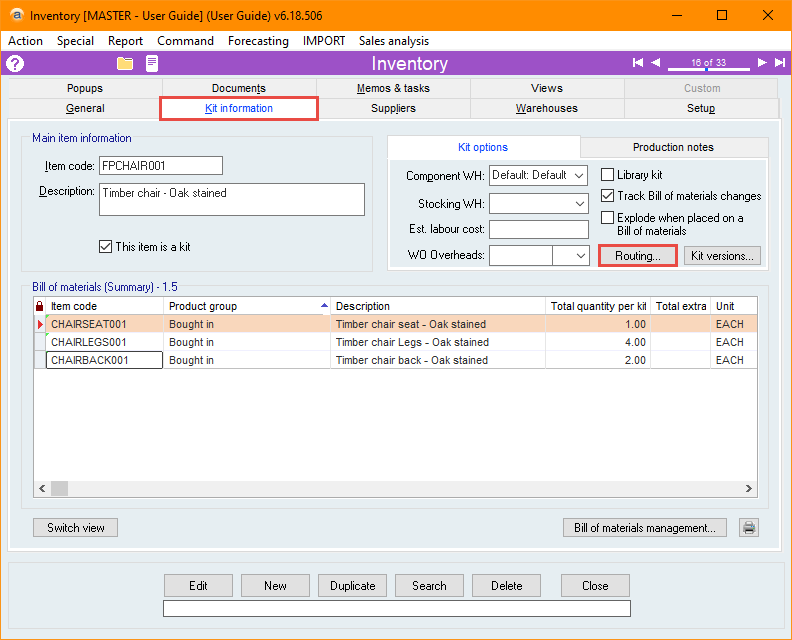
- Navigate to the Kit information tab and select the Routing button.
- Editing the routing from this window will update the routing for all future work orders for this kit. If you only want to edit the routing for a single Work order, navigate to the Routing tab for the relevant Work order.
- Select Add to create a new line.
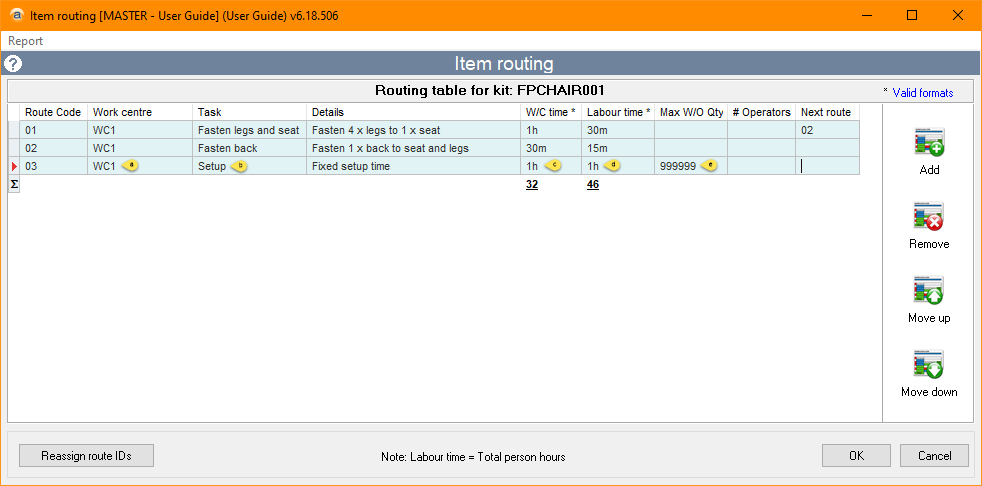
- Fill in the relevant details for the line as below:
- Enter the Code into the Work centre field.
- Enter "Setup" into the Task field.
- Enter the amount of time for the setup into the W/C hrs field.
- Enter the amount of total person hours for the setup into the Lab hrs field.
- Enter the maximum quantity for which the setup time applies into the Max W/O Qty field.
- If the setup time is fixed for a specific quantity, then this will be the Max W/O Qty. If the setup time is fixed regardless of the quantity, then the Max W/O Qty will be set to an unreachably large quantity.
- Select OK, then select Update to save your changes.
Did you find this article helpful?
If this article is missing information, ambiguous or didn’t give you clear instructions, let us know and we will make it better! Please email us and quote the KB# in the top right of this article to let us know why it didn’t help you out and we will point you in the direction of additional information.
Last edit: 20/05/2026